
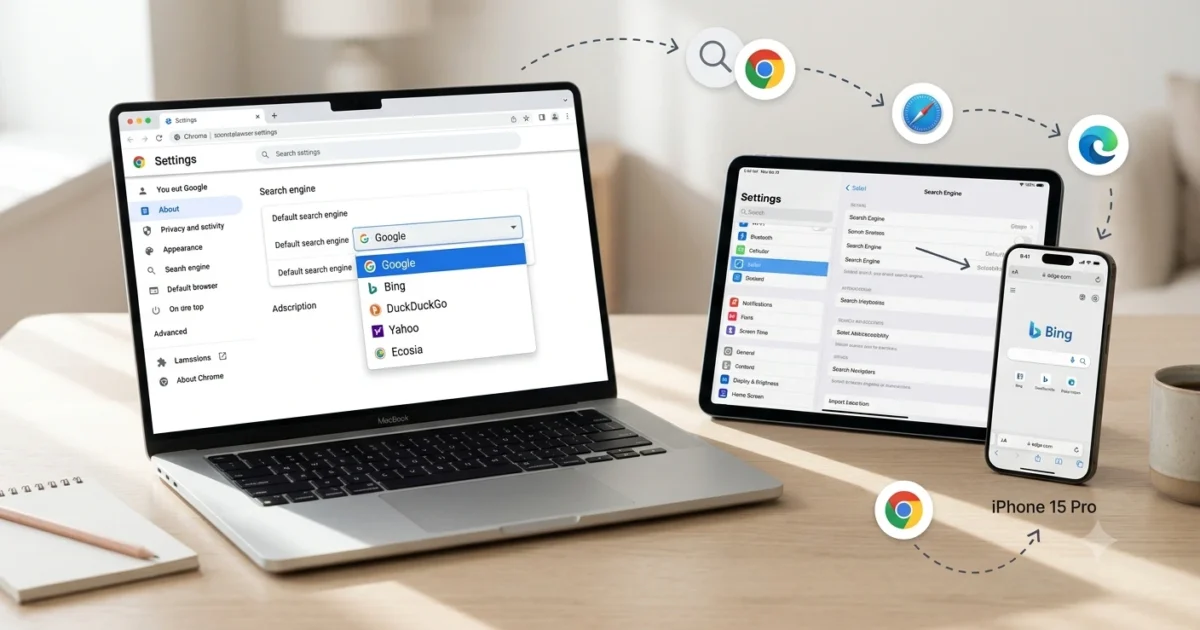
Every time you open a new browser tab and type a phrase into the address bar, a search engine goes to work. But is it the one you actually want to use? Millions of us accept whatever software comes pre-installed on our devices, unconsciously handing our data and search habits over to corporate tech giants.
If you are tired of cluttered search results pages or want to protect your digital privacy, learning how to change default search engine settings is the fastest way to reclaim your online experience.
In my experience testing different browser setups across dozens of client devices, switching your search provider takes less than two minutes—yet it completely transforms how you interact with the web. Whether you want to switch from Google to a privacy-focused alternative like DuckDuckGo, or you prefer the AI-integrated features of Microsoft Bing, the process is straightforward.
This guide will walk you through the exact steps for every major browser on both desktop and mobile devices. You will also learn how to troubleshoot common issues, like malware hijacking your search bar.
Key Takeaway: Changing your browser’s default search provider is a quick, completely reversible setting that gives you immediate control over your privacy, search result layout, and browsing speed.
Why You Should Customize Your Search Provider
Most users stick with the default settings because they assume all search tools are essentially the same. They aren’t. Statcounter reports that Google holds over 90% of the global search engine market share, but that dominance does not mean it is the best fit for your specific needs.
When I tested a clean browsing profile using alternative search engines last month, I noticed an immediate difference in how information was presented. Google heavily prioritizes sponsored products and localized ads at the top of the page. If you are researching academic topics or looking for unbiased product reviews, wading through these ads can feel exhausting.
Privacy is another massive driving factor. Standard search engines track your IP address, search history, and clicking patterns to build a monetization profile. Switching to an independent option allows you to browse without constant data collection.
Alternatively, you might want to switch to Bing to earn Microsoft Rewards points while you browse, or try Ecosia to fund tree-planting initiatives with your daily web traffic. Tailoring your browser to your values makes your daily internet usage much more efficient.
How to Change Default Search Engine in Google Chrome
Google Chrome is the most popular browser in the world, but it naturally pushes you to use Google Search. Thankfully, the developers make it relatively easy to swap providers if you prefer an alternative.
Desktop Steps for Chrome
- Click the three vertical dots in the top-right corner of the window to open the main menu.
- Select Settings from the drop-down list.
- Click on Search engine in the left-hand sidebar.
- Locate the dropdown menu next to “Search engine used in the address bar.”
- Choose your preferred option (such as Bing, Yahoo, or DuckDuckGo) from the list.
Mobile Steps for Chrome (iOS and Android)
Changing the setting on your phone looks slightly different but follows a similar logic. Open the Chrome app, tap the three dots (top-right on Android, bottom-right on iOS), and open Settings. Tap Search Engine and select your preferred provider from the available list.
If your favorite search site isn’t showing up automatically, you can add it manually under the “Manage search engines and site search” section. Simply visit the website once, and Chrome will usually detect it as an available option.
Switching Search Settings in Apple Safari
Apple devices come pre-configured with Google as the default choice due to a massive, multi-billion-dollar routing agreement between the two tech giants. However, Apple gives users a clean, built-in toggle to break away from this default on Mac, iPhone, and iPad.
Changing Settings on macOS
- Open Safari on your Mac computer.
- Click Safari in the top menu bar and select Settings (or Preferences on older macOS versions).
- Click the Search tab, which features a magnifying glass icon.
- Click the drop-down menu next to Search engine.
- Select your chosen tool from the list of approved providers.
Changing Settings on iPhone or iPad
Unlike other browsers, you do not change Safari’s settings inside the browser app itself. Instead, you must use the global iOS settings system.
Open your device’s Settings app, scroll down until you find Safari, and tap it. Under the “Search” section, tap Search Engine and make your selection.
Modifying Microsoft Edge and Mozilla Firefox
If you use Microsoft Edge or Mozilla Firefox, you have plenty of flexibility. Edge leans heavily into Bing, while Firefox uses Google by default but remains fiercely independent.
The Edge Address Bar Fix
Because Edge is deeply integrated with Windows, Microsoft makes the search setting a little harder to find. Click the three dots, go to Settings, and select Privacy, search, and services. Scroll all the way to the very bottom of the page and click Address bar and search. From there, you can change the provider used in your address bar.
Settings → Privacy, search, and services → Address bar and search
The Firefox Approach
Firefox keeps things highly intuitive. Click the three horizontal lines in the top right, choose Settings, and click the Search panel on the left.
Under the Default Search Engine section, pick your preferred option from the drop-down menu. Firefox also allows you to toggle “Search Suggestions” on or off, which stops the browser from sending your live keystrokes to the search company before you even hit enter.
Troubleshooting: What to Do If Your Search Engine Keeps Changing
Sometimes, you change your settings, only to find that your browser reverts to an unfamiliar website the very next day. If your address bar keeps redirecting to a sketchy search tool, you are likely dealing with a browser hijacker.
A browser hijacker is a type of low-level malware or unwanted software extension. It forcefully modifies your browser settings without permission to drive traffic to ad-heavy websites. This often happens when you download free software bundles or click a misleading download button online.
To fix this issue, start by auditing your browser extensions. In Chrome or Edge, navigate to the extensions menu and remove anything you do not remember installing yourself.
If that fails, reset your browser to its original factory defaults. This action clears out malicious configurations without deleting your saved bookmarks or passwords. Finally, run a full system scan using a trusted antivirus tool like Malwarebytes to ensure no underlying malicious scripts remain on your hard drive.
Frequently Asked Questions
Why does my default search engine keep changing to Yahoo?
This issue is almost always caused by a malicious browser extension or a bundled software program you recently installed. Many free downloads secretly include “search offers” that change your default settings. Check your browser extensions list and delete any suspicious or unfamiliar tools.
Does changing my search engine delete my browsing history?
No. Changing your preferred search engine only alters where your future address bar queries are sent. Your existing history, saved passwords, and bookmarks remain completely intact within your local browser storage.
What is the safest search engine for personal privacy?
DuckDuckGo and Brave Search are widely considered the gold standards for privacy. They do not track your IP address, store your search history, or create a digital tracking profile to sell targeted advertisements to third-party marketing companies.
Can I add a custom search engine that isn’t on the standard list?
Yes, most desktop browsers allow you to add custom sites via their “Manage Search Engines” settings. You will need to input the exact query URL of the site, which usually includes a specific placeholder token where your search terms go.
Is there a difference between a browser and a search engine?
Yes. A web browser is the software application you use to access the internet (like Chrome or Safari). A search engine is the website or tool inside that browser used to index and find information across the web (like Google or Bing).
Summarizing Your Browsing Options
Taking control of your digital workspace starts with the tools you use every day. Learning how to change default search engine behaviors ensures that your browser works for you, rather than for the ad networks funding the default configurations.
The process takes less than two minutes regardless of whether you are configuring a desktop workstation or an iPhone. By aligning your search provider with your personal priorities—whether that means choosing DuckDuckGo for strict privacy, Bing for productivity, or Google for raw index size—you instantly build a cleaner, faster web experience. Check your browser settings right now and ensure your device is optimized exactly how you want it.
Also Read; Sitemap Generator by Spellmistake: The Complete Guide to XML Sitemaps and Search Engine Indexing
